


Disabled Condition
1. Overview
Disabled conditions are a dynamic form interaction mechanism that controls a field's editable state (disabled/editable) based on specific conditions. When user operations or data states meet preset conditions, the system automatically sets the field to disabled or editable, restricting user input, avoiding data conflicts, or ensuring data consistency.
2. Use Cases
- Condition-triggered Disable: For example, when users select "Paid" status, disable modification of the "Payment Amount" field;
- Condition-triggered Enable: For example, when users select "Custom Amount" option, enable the "Other Amount" input box.
3. Configuration Entry
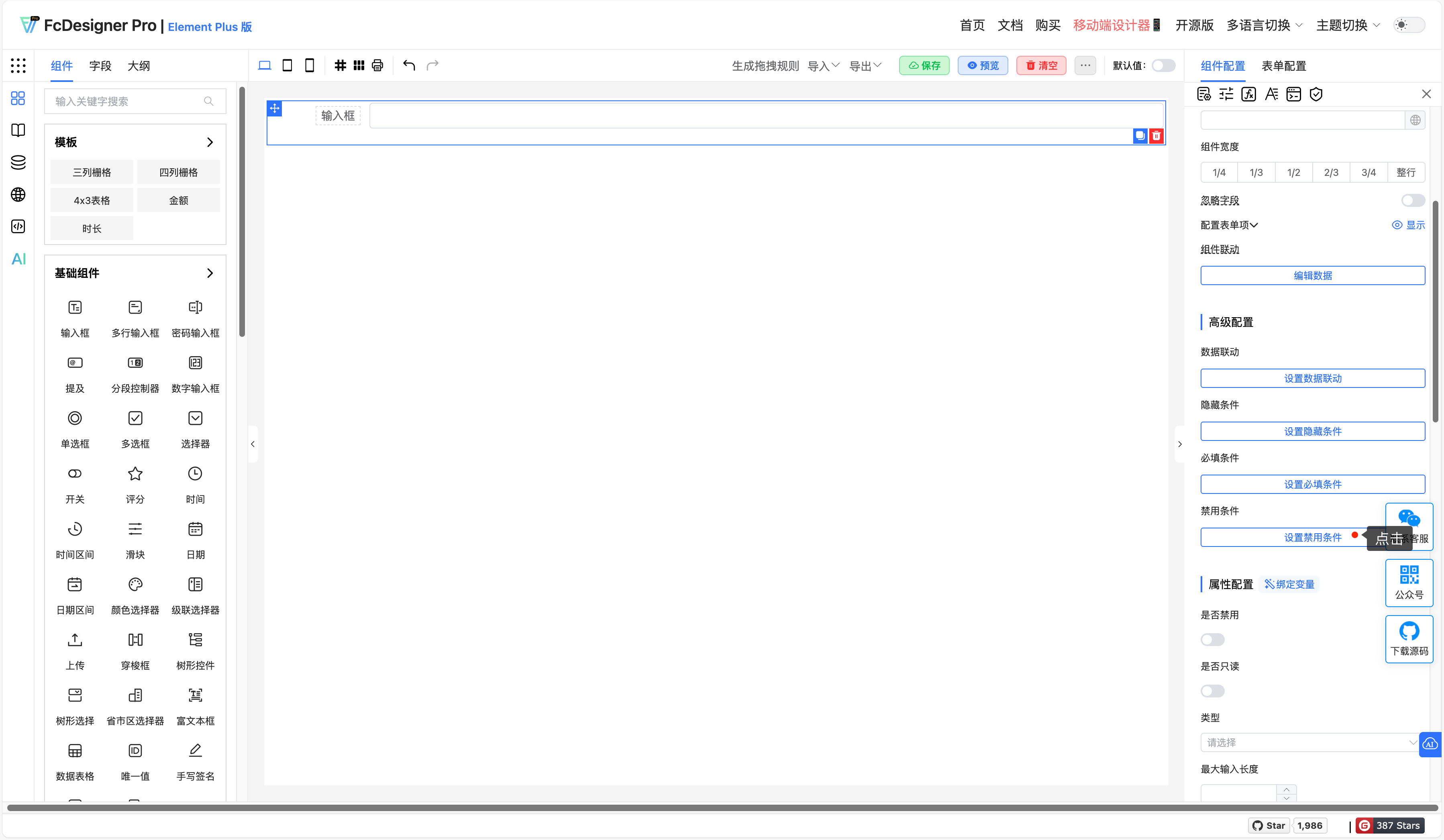
For the following fields, after selecting a field, set "Disabled Condition" in "Component Configuration >> Advanced Configuration":
After clicking disabled condition, the disabled condition configuration dialog opens;
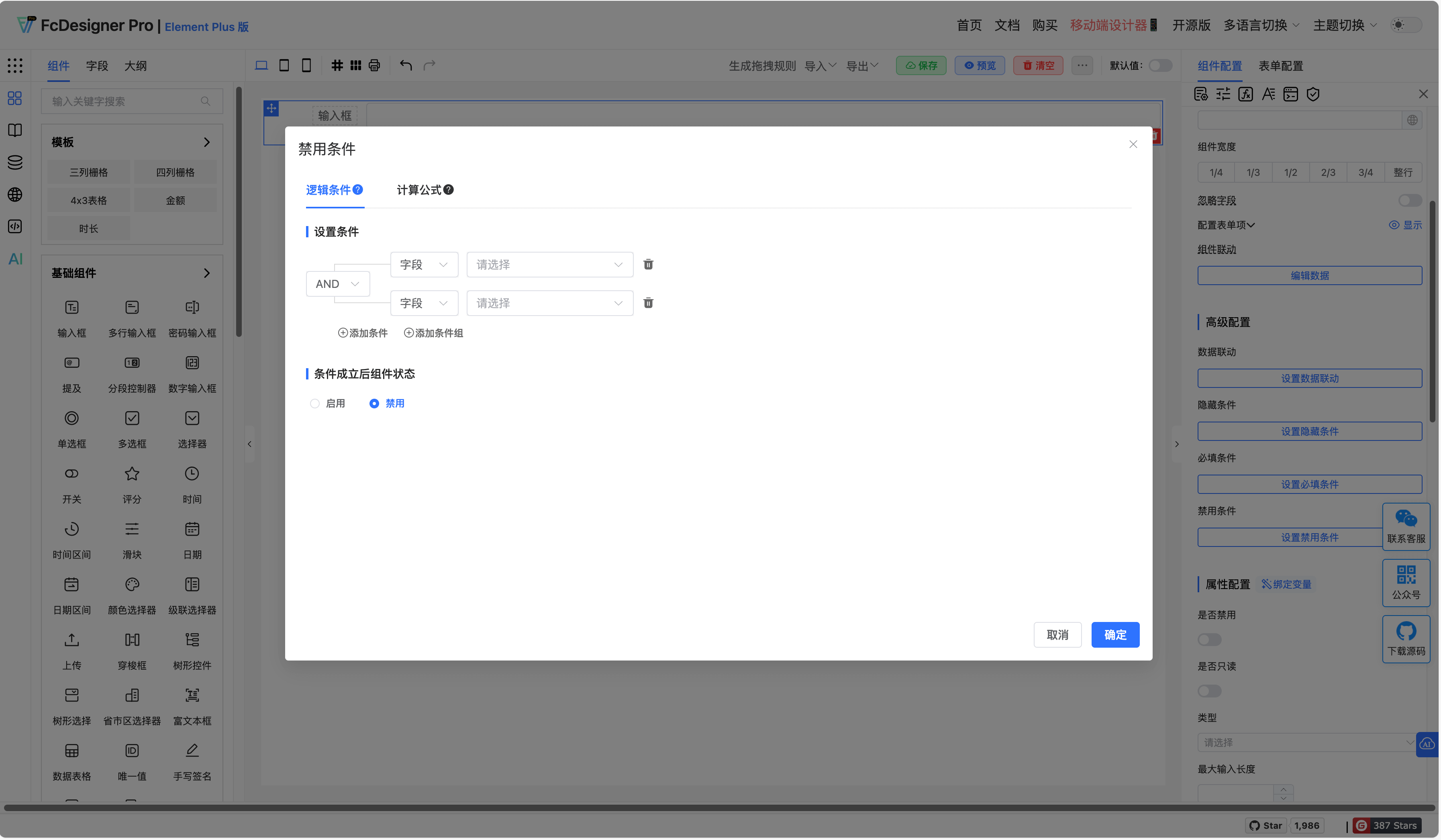
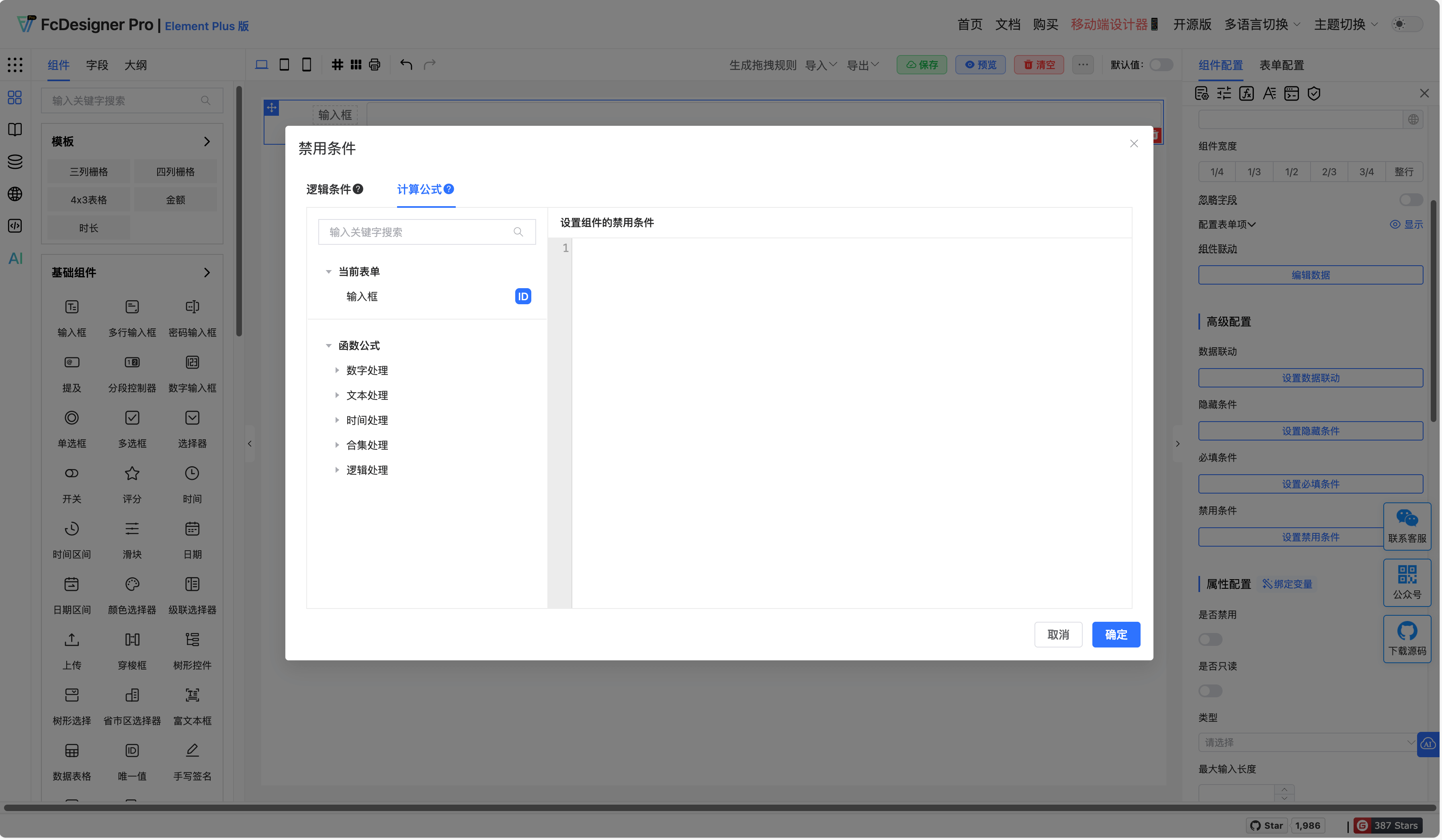
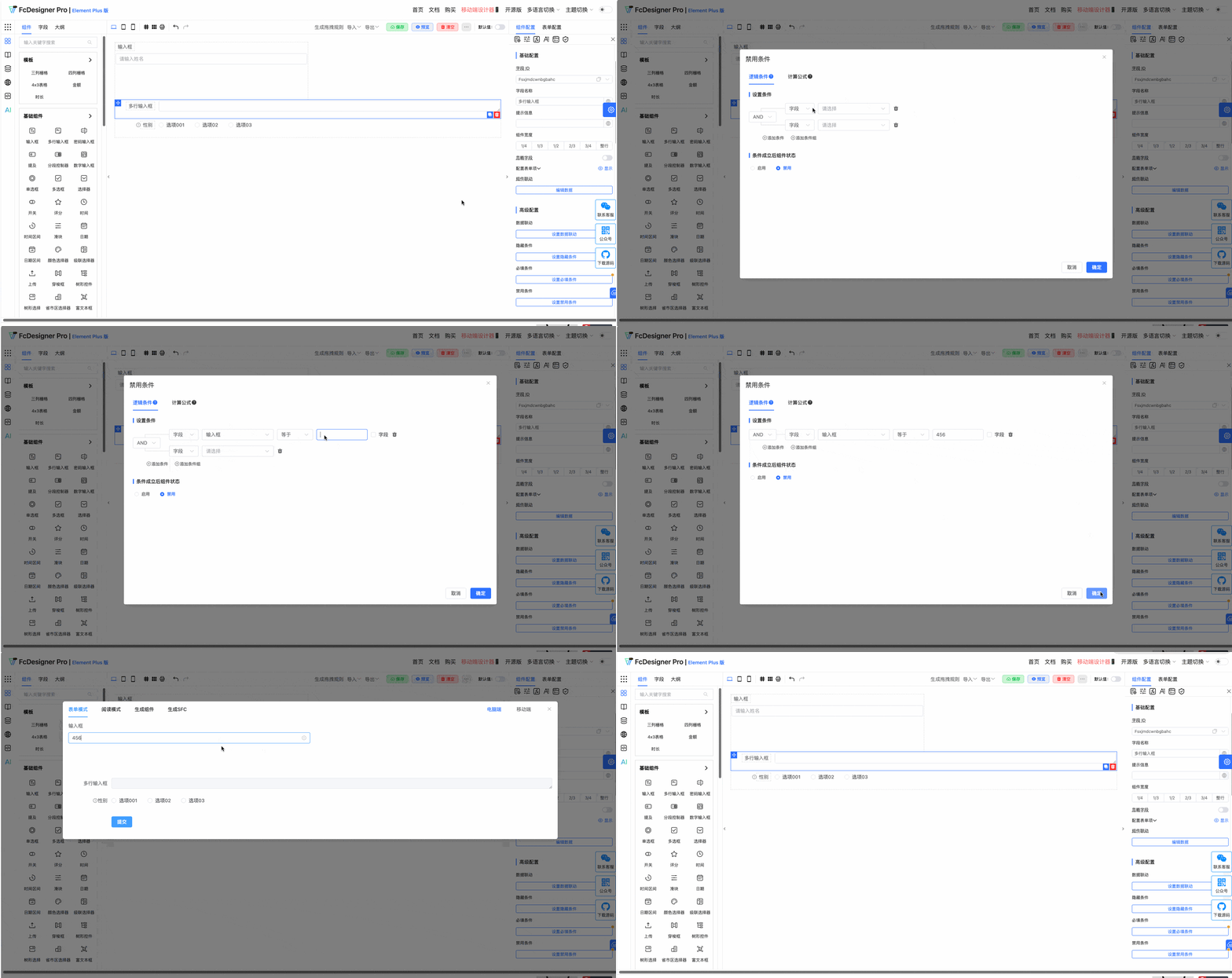
When conditions are met, set this field to disabled or editable.
4. Supported Fields
Fields that support setting "Data Linkage" include: Input Box, Textarea, Password Input, Mention, Segmented Controller, Number Input, Radio Button, Checkbox, Select, Switch, Rating, Time, Time Range, Slider, Date, Date Range, Color Picker, Cascader, Upload, Transfer, Tree, Tree Select, Province-City-District Picker, Rich Text Editor, Unique Value, Handwritten Signature, Calculation Formula, Sub-form Selector, Slot Area, Dynamic Area
5. Examples
Example 1:
In order detail pages, if order status is "Paid" or "Shipped", disable fields or buttons such as "Modify Delivery Address" and "Cancel Order"; if status is "Pending Payment", allow users to edit.
Example 2:
In product inventory management forms, if product status is "Discontinued", disable the "Stock Quantity" field; if status is "On Sale", allow editing.
Example 3:
In event registration forms, if users select "Use Coupon", enable the "Coupon Code" input box; if not selected, disable this field.