


Manage Field ID
Field IDs uniquely identify each component's field in the designer. By default, they're randomly generated and users can't input them. Customize field ID input and selection:
Note
- Field IDs must start with a letter and can only contain letters, numbers, and underscores. Valid example: 'goods_brandName_01'.
- Field IDs must be unique within the same form level. Duplicates will cause functional issues.
Data Structure
FieldItem defines the structure of field ID selection items:
type FieldItem = {
    // Field name
    value: string;
    // Alias
    label: string;
    // Modify current rule's required, disabled, and info
    update?: {
        required?: Boolean;
        disabled?: Boolean;
        info?: string;
    };
    // Child field list
    children?: FieldItem[];
}
Allow Field ID Input
Control whether the field ID input box is editable using config.fieldReadonly:
<template>
    <fc-designer ref="designer" :config="config"/>
</template>
<script setup>
    const config = {
        // Control whether field ID input box can be edited
        fieldReadonly: false
    }
</script>- fieldReadonly: true - Field ID can only be selected from options, cannot be manually entered
- fieldReadonly: false - Field ID can be manually entered or selected from options
The following features are only available in the Pro version of the designer. Learn more about Pro version features
Customize Field ID Selection Items
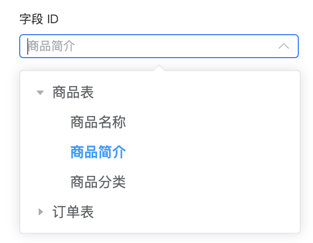
Set config.fieldList to define field ID selection items. Selection items support nested structures for organizing complex field lists:
<template>
    <fc-designer ref="designer" :config="config"/>
</template>
<script setup>
    const config = {
        // Control field ID to only allow selection, not input
        fieldReadonly: true,
        fieldList: [
            {
                value: 'goods',
                label: 'Product Table',
                children: [
                    {
                        value: 'goods_name',
                        label: 'Product Name',
                    },
                    {
                        value: 'goods_info',
                        label: 'Product Description',
                    },
                    {
                        value: 'goods_cate',
                        label: 'Product Category',
                    },
                ],
            },
            {
                value: 'order',
                label: 'Order Table',
                children: [
                    {
                        value: 'order_id',
                        label: 'Order ID',
                    },
                    {
                        value: 'order_sn',
                        label: 'Order Number',
                    },
                    {
                        value: 'order_time',
                        label: 'Order Time',
                    },
                ],
            },
        ]
    }
</script>
Modify Component Rules When Selecting Field
Use the update field to dynamically modify component rules like required, disabled, and info when selecting a field:
<template>
    <fc-designer ref="designer" :config="config"/>
</template>
<script setup>
    const config = {
        // Control field ID to only allow selection, not input
        fieldReadonly: false,
        fieldList: [
            {
                value: 'goods',
                label: 'Product Table',
                children: [
                    {
                        value: 'goods_name',
                        label: 'Product Name',
                        update: {
                            required: true,
                            info: 'Please enter product name',
                            disabled: false,
                        }
                    },
                    {
                        value: 'goods_info',
                        label: 'Product Description',
                    },
                    {
                        value: 'goods_cate',
                        label: 'Product Category',
                        update: {
                            required: false,
                            info: 'Please select product category',
                            disabled: true,
                        }
                    },
                ],
            },
        ]
    }
</script>
In this configuration, selecting the "Product Name" field automatically makes the component required and displays the prompt message.
Sub-form Component and Internal Form Component Linkage
By default, when a sub-form component's selected field has children, other internal components can only select from those children. Control this with config.relationField:
<template>
    <fc-designer ref="designer" :config="config"/>
</template>
<script setup>
    const config = {
        // Control whether to enable field linkage
        relationField: true // Set to false to disable field linkage
    }
</script>- relationField: true - Enable field linkage. The field selected by the sub-form affects the selection range of other components
- relationField: false - Disable field linkage. All components can freely select fields
Dynamically Modify Field ID Options
Dynamically modify field ID options based on business requirements. Useful when you need to adjust field options based on user selections or other conditions.
1. Define Dynamic Field ID Option Update Method
Define a method within the component to update the field ID option list:
<template>
    <fc-designer ref="designer" :config="config"/>
    <button @click="updateFieldList">Update Field List</button>
</template>
<script setup>
    import { ref } from 'vue';
    const config = ref({
        fieldReadonly: false,
        fieldList: [
            // Initial field options
        ]
    });

    // Method to update field list
    const updateFieldList = () => {
        config.value.fieldList = [
            {
                value: 'user',
                label: 'User Table',
                children: [
                    { value: 'user_name', label: 'Username' },
                    { value: 'user_email', label: 'User Email' }
                ]
            },
            {
                value: 'product',
                label: 'Product Table',
                children: [
                    { value: 'product_name', label: 'Product Name' },
                    { value: 'product_price', label: 'Product Price' }
                ]
            }
        ];
    }
</script>
2. Update Field ID Options During User Operations
Trigger field ID option updates through user operations or other events. For example, fetch field ID options from the server after the form loads:
<template>
    <fc-designer ref="designer" :config="config"/>
</template>
<script setup>
    import { ref, onMounted } from 'vue';
    const config = ref({
        fieldReadonly: false,
        fieldList: []
    });

    // Function to fetch dynamic field list
    const fetchFieldList = async () => {
        // Simulate fetching field list from server
        const response = await fetch('/api/fields');
        const data = await response.json();
        config.value.fieldList = data;
    }

    onMounted(() => {
        fetchFieldList();
    });
</script>
The field ID list is fetched from the server when the component loads and can be adjusted based on business requirements.