


Keyboard Shortcuts
Keyboard shortcuts can significantly improve efficiency during form design and help you quickly complete routine operations. The designer includes a series of practical keyboard shortcuts.
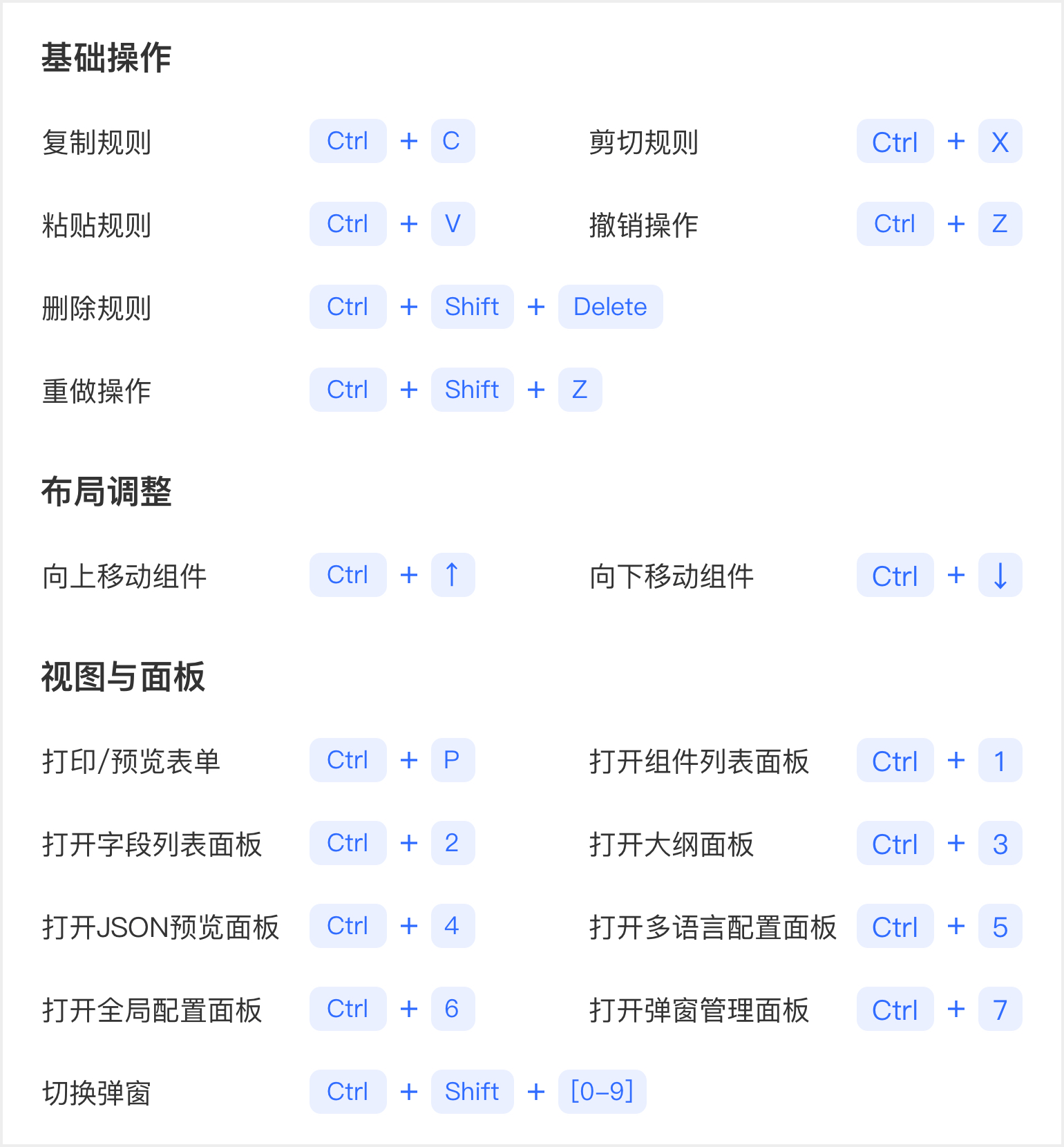
Keyboard Shortcut Operations
Currently supported keyboard shortcut operations and their functions:
Basic Operations
| Function | Shortcut | Description |
|---|---|---|
| Copy Rule | Command/Ctrl + c | Copy the configuration rule of the currently selected component for quick reuse of components with the same configuration. |
| Cut Rule | Command/Ctrl + x | Remove the configuration rule of the currently selected component and store it in the clipboard, supporting pasting to other locations. |
| Paste Rule | Command/Ctrl + v | Paste the configuration rule from the clipboard to the target container or end of the form. |
| Delete Rule | Command/Ctrl + Shift + Delete | Delete the currently selected component and its configuration rule. |
| Undo Operation | Command/Ctrl + z | Roll back to the previous operation state, supporting multi-level undo (such as delete, move, configuration modification, etc.). |
| Redo Operation | Command/Ctrl + Shift + z | Restore the most recently undone operation, used together with the undo function. |
Layout Adjustment
| Function | Shortcut | Description |
|---|---|---|
| Move Component Up | Command/Ctrl + ↑ | Move the selected component up one position in the form container. |
| Move Component Down | Command/Ctrl + ↓ | Move the selected component down one position in the form container. |
Views and Panels
| Function | Shortcut | Description |
|---|---|---|
| Print/Preview Form | Command/Ctrl + p | Open the form print preview window, supporting layout adjustment or export to PDF. |
| Open Component List Panel | Command/Ctrl + 1 | Display categorized list of all draggable components. |
| Open Field List Panel | Command/Ctrl + 2 | Display tree structure of all fields in the current form, supporting quick jump to edit field properties. |
| Open Outline Panel | Command/Ctrl + 3 | Display form hierarchical structure thumbnail for quick positioning of nested components or complex layouts. |
| Open JSON Preview Panel | Command/Ctrl + 4 | View form configuration JSON data in real-time, supporting direct editing and synchronization to the form. |
| Open Multi-language Configuration Panel | Command/Ctrl + 5 | Configure multi-language mapping for form labels, hints, and other text. |
| Open Global Configuration Panel | Command/Ctrl + 6 | Manage form global data. |
| Open Dialog Management Panel | Command/Ctrl + 7 | Manage nested dialog components in the form. |
| Switch Dialog | Command/Ctrl + Shift + [0-9] | Quickly switch to the dialog editing interface of the specified number (0-9). |
Disable Keyboard Shortcuts
To temporarily disable keyboard shortcut functionality, set config.hotKey = false:
vue
<template>
    <fc-designer ref="designer" :config="config"/>
</template>
<script setup>
    const config = {
        hotKey: false  // Disable keyboard shortcuts
    }
</script>
Using keyboard shortcuts effectively improves design efficiency and ensures a smooth, accurate form design process.