


Read Mode
Custom component read mode controls how echo content is displayed within the component, enabling data to be displayed differently in read mode than in edit mode.
This feature is only available in the Pro version of the designer. Learn more about Pro version features
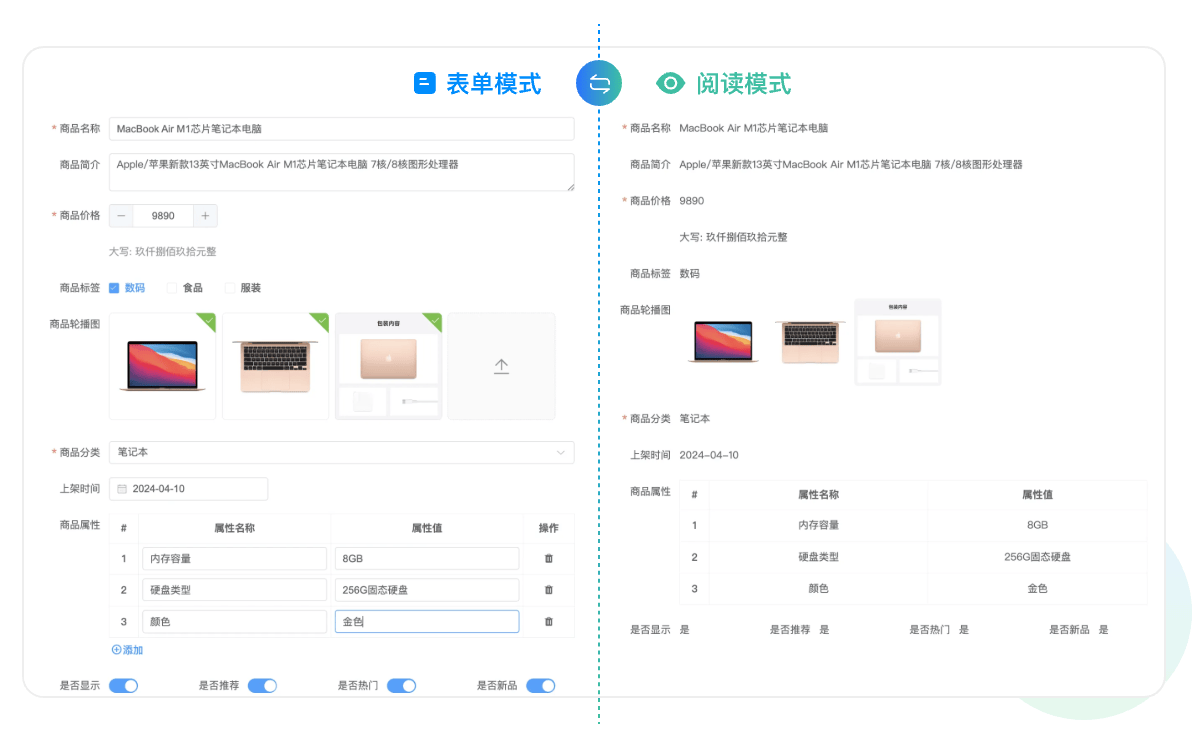
Enable Read Mode
Set the options.preview configuration item to put the form into read mode to display form content when editing is not needed.
Read Mode Example
Set the form to read mode:
<template>
    <div id="app">
        <form-create v-if="rule.length" v-model="formData" v-model:api="fApi" @submit="handleSubmit" :rule="rule" :option="option"></form-create>
    </div>
</template>
<script setup>
    import {formCreate} from '@form-create/designer';
    const rule = ref([]);
    const options = ref({});
    // Form data
    const formData = ref({});
    const fApi = ref(null);
    onMounted(() => {
        // Load previously stored form rules and configuration
        axios.get('/api/getFormRules')
            .then(response => {
                const { ruleJson, optionsJson, formData } = response.data;
                rule.value = formCreate.parseJson(ruleJson);
                options.value = formCreate.parseJson(optionsJson);
                formData.value = formData;
                options.value.preview = true; // Set to read mode
            })
            .catch(error => {
                console.error('Failed to load form rules:', error);
            });
    });
</script>
Custom Component Read Display
Drag Rule
When defining drag rules, specify the component's read mode as custom mode by setting readMode: 'custom'. This tells the designer to use custom echo logic to render the component:
Important Note
The readMode: 'custom' configuration only takes effect for rules newly dragged into the designer afterwards. Rules that have already been saved won't automatically apply custom read mode. To enable custom read mode for existing rules, manually edit the rule configuration or re-drag the component.
import uniqueId from '@form-create/utils/lib/unique';
const label = 'Custom Input';
const name = 'FInput';
const FInputRule = {
    menu: 'main',
    icon: 'icon-value',
    label,
    name,
    event: ['change'],
    rule({t}) {
        return {
            type: name,
            field: uniqueId(),
            // Define here, very important!!!
            readMode: 'custom',
            title: 'Custom Input',
            info: '',
            props: {},
        };
    },
    props() {
        return [];
    }
};
Custom Echo Content
In some complex scenarios, dynamically adjust echo content based on user input or other conditions. Achieve this by dynamically calculating modelValue:
<template>
    <div class="_fc-value">
        <!-- In read mode -->
        <template v-if="formCreateInject.preview">
            <span v-if="isSpecialCondition">{{ specialContent }}</span>
            <span v-else>{{ modelValue }}</span>
        </template>
        <!-- In form mode -->
        <template v-else>
            <el-input :modelValue="modelValue" @update:modelValue="input"></el-input>
        </template>
    </div>
</template>

<script>
import { defineComponent } from 'vue';

export default defineComponent({
    name: 'FInput',
    props: {
        modelValue: String,
        // Inject formCreate context
        formCreateInject: Object,
    },
    computed: {
        isSpecialCondition() {
            // Determine if special condition is met based on business logic
            return this.modelValue === 'special';
        },
        specialContent() {
            // Generate echo content based on special condition
            return 'Special Content';
        }
    },
    methods: {
        input(val) {
            this.$emit('update:modelValue', val);
            this.$emit('change', val);
        }
    }
});
</script>
Mount Component and Drag Rule
After completing the definition of the component and drag rule, mount them to the FcDesigner instance so they can be used in the designer:
// Mount component
FcDesigner.addCompoent(FInput);
// Mount drag rule
this.$refs.designer.addComponent(FInputRule);