


Component Groups
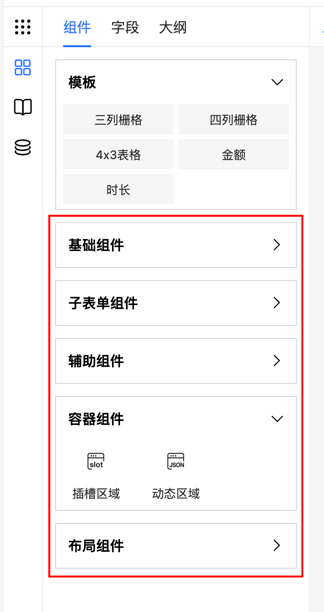
Add custom component groups to the left component bar in the form designer using the addMenu method to organize and manage components. This guide shows how to use this feature.
Note
Global import of component groups is now supported through the FcDesigner.addMenu method, enabling one-time configuration for use in multiple places. Method Documentation
Data Structure
ts
interface Menu {
    // Menu name
    title: string;
    // Menu ID
    name: string;
    // Place at the top of the list
    before?: boolean;
}
Extend Groups
Add new groups to the component bar:
vue
<template>
    <fc-designer ref="designer" />
</template>
<script>
    export default {
        mounted() {
            // Add business component group
            this.$refs.designer.addMenu({
                name: 'shop',
                title: 'Business Components',
            });
            // Add custom component drag rules
            this.$refs.designer.addComponent({
                menu: 'shop',
                //...
                // Drag rules
            });
            this.$refs.designer.addComponent({
                menu: 'shop',
                //...
                // Drag rules
            });
        }
    }
</script>
Built-in Component Groups
The designer has several default component groups predefined. You can use or extend these groups as needed:
| Group Name | Group ID |
|---|---|
| Template List | template |
| Basic Components | main |
| Sub-form Components | subform |
| Container Components | container |
| Chart Components | chart |
| Auxiliary Components | aide |
| Layout Components | layout |
Dynamically Load Components
Dynamically load components into groups. For example, fetch a component list from the server through an async request and add to a specific group:
vue
<template>
    <fc-designer ref="designer" />
</template>
<script>
    export default {
        async mounted() {
            const response = await fetch('/api/custom-components');
            const customComponents = await response.json();
            this.$refs.designer.addMenu({
                name: 'Business',
                title: 'Business Components',
            });
            this.$refs.designer.addComponent(customComponents);
        }
    }
</script>